
To pair your iPhone with BMW Bluetooth, ensure your vehicle’s system is ready and your phone’s Bluetooth is activated. Follow the steps below to establish a seamless connection and enjoy hands-free calling and audio streaming.
BMW Bluetooth System Activation Steps
Activating the Bluetooth system in your BMW is essential for a smooth connection with your iPhone. This process ensures that you can enjoy hands-free calling, music streaming, and other features seamlessly. Follow these detailed steps to set up your BMW’s Bluetooth system and connect it to your iPhone effortlessly.
Before starting the pairing process, check that your BMW’s Bluetooth system is turned on. This can usually be done through the vehicle’s infotainment system. Make sure your iPhone is updated to the latest iOS version to avoid compatibility issues.
Start your BMW and navigate to the Bluetooth settings in the infotainment system.
Select the option to add a new device.
Recommended Products
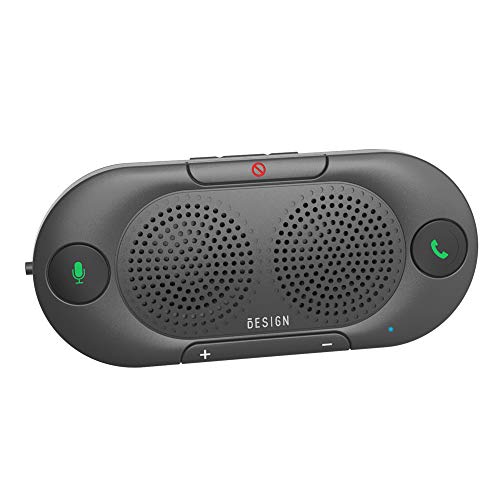
BLUETOOTH V5.0 and Long Working time: The latest Bluetooth 5.0+EDR technology provides lower power consumption and wider compatibility.

Simple Installation Process: Put the plug into car's USB & AUX 3.5 socket, select Audio AUX model for play music (if required by your vehicle), connect the bluetooth adapter by cell phone/ipod/device to play music. Please restart cell phone to connect the adapter if did not success at first time
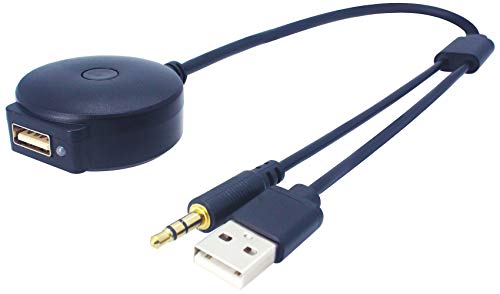
Easy Installation Process: Put the plug into car's USB & AUX 3.5 socket, select Audio AUX model on your car system if required, connect the bluetooth adapter with your cell phone/ipod/device to play music. Please restart cell phone to connect the adapter if connection does not succeed at first attempt
Enable Bluetooth on Your iPhone
To successfully pair your iPhone with your BMW via Bluetooth, the first step is enabling Bluetooth on your device. This process is straightforward and essential for establishing a seamless connection. By following these steps, you can ensure your iPhone is ready for synchronization with your BMW’s audio system.
Your iPhone needs to have Bluetooth enabled for pairing. This process is straightforward and can be completed in just a few taps.
Open the Settings app on your iPhone.
Tap on Bluetooth.
Toggle the Bluetooth switch to the On position.
iPhone and BMW Bluetooth Pairing Steps
Pairing your iPhone with your BMW via Bluetooth can enhance your driving experience by allowing you to access music, calls, and navigation seamlessly. This guide provides clear, step-by-step instructions to ensure a smooth connection between your devices, helping you make the most of your vehicle’s technology. Follow these steps to enjoy a fully integrated driving experience.
Once both devices are prepared, you can initiate the pairing process. Follow these steps to connect your iPhone to your BMW.
On your BMW’s infotainment screen, select the option to search for devices.
Your BMW will display a list of available devices. Look for your iPhone’s name and select it.
A pairing code will appear on both your iPhone and BMW screen. Confirm that the codes match.
Tap Pair on your iPhone and select Yes on your BMW.
Common Bluetooth Pairing Challenges
When attempting to connect your iPhone to a BMW via Bluetooth, you may encounter several common challenges that can disrupt the pairing process. Understanding these issues can help you troubleshoot effectively and ensure a seamless sync between your devices. This section explores typical obstacles and offers solutions to enhance your Bluetooth experience.
Sometimes, pairing may not go as planned. Understanding common issues can help you resolve them quickly.
| Symptom | Primary Suspect | Difficulty |
|---|---|---|
| iPhone not found | Bluetooth off | 2 |
| Code mismatch | Incorrect entry | 3 |
| Connection drops | Weak signal | 4 |
| Audio issues | Software glitch | 3 |
If you encounter any of these issues, try restarting both devices and repeating the pairing process.
BMW Connected App Features for Enhanced Driving
The BMW Connected app offers a range of features designed to enhance your driving experience by seamlessly integrating your iPhone with your vehicle. From navigation assistance to remote vehicle access, this app transforms how you interact with your BMW, ensuring that every journey is more convenient and enjoyable. Discover how these features can elevate your time on the road.
The BMW Connected app offers additional functionalities that enhance your driving experience. This app allows you to access features such as navigation, remote start, and vehicle status checks.
Download the BMW Connected app from the App Store.
Create an account or log in.
Follow the prompts to link your vehicle with the app.
Bluetooth Connection Stability Tips for iPhone and BMW
Establishing a reliable Bluetooth connection between your iPhone and BMW can enhance your driving experience by allowing seamless access to music, navigation, and hands-free calls. This section provides practical tips to ensure a stable connection, helping you avoid common pitfalls and enjoy uninterrupted functionality while on the road.
After successfully pairing your iPhone with your BMW, ensure the connection remains stable. Regularly check for software updates on both your iPhone and BMW to keep compatibility intact.
Periodically check for updates in the Settings app on your iPhone.
Access your BMW’s settings to check for system updates.
Bluetooth Connection Optimization Tips
To enhance your experience when pairing your iPhone with your BMW, optimizing the Bluetooth connection is essential. This section provides practical tips to ensure a seamless sync, improving audio quality and connectivity stability. By following these guidelines, you can maximize the functionality of your devices while enjoying a smooth driving experience.
To ensure the best performance from your Bluetooth connection, consider these additional tips.
Clear old devices from your BMW’s Bluetooth memory if you exceed the limit.
Regularly restart your iPhone to maintain optimal performance.
If issues persist, consult your BMW’s user manual for specific troubleshooting steps.
Be aware that connectivity issues may arise from environmental factors or software bugs. Regular maintenance of both devices can mitigate these problems.

Evan Armstrong is a lead automotive engineer at Car Troubleshooters with over 15 years of experience in the automotive industry. He has a Master's degree in Automotive Engineering and a deep understanding of how cars work and what it takes to fix them.