
Ever find yourself in your Chevrolet Tahoe, trying to enjoy a peaceful drive, but the voice prompts just won’t stop? You’re not alone. Many drivers face this same frustration, especially when the GPS or media system seems to have a mind of its own.
Key Takeaways
- Voice Control Functionality: The Chevrolet Tahoe offers a sophisticated voice control system for hands-free operation of navigation, media, and phone functions, enhancing safety and convenience while driving.
- Volume Adjustment Settings: Customizing the voice volume settings through the infotainment system allows drivers to reduce distractions and create a more pleasant cabin atmosphere.
- Step-by-Step Adjustment Process: Drivers can easily turn off or lower the voice volume by navigating through the settings menu, using the physical volume knob, or utilizing steering wheel controls.
- Troubleshooting Tips: If voice volume adjustments are ineffective, checking infotainment settings, managing multiple volume controls, and considering a system reset can resolve common issues.
- System Maintenance: Regularly checking for software updates and performing a power cycle on the infotainment system can help maintain optimal performance and avoid glitches.
Overview Of Chevrolet Tahoe Voice Control
Chevrolet Tahoe features an advanced voice control system, providing drivers with hands-free convenience. This system allows you to interact with navigation, media, and phone functions using simple voice commands. Understanding how voice control works enhances your driving experience, ensuring you stay focused on the road.
Voice prompts alert you to navigation instructions and other system features. However, these prompts can be distracting, especially when driving. Knowing how to adjust the voice volume or mute it entirely can help maintain a quieter cabin atmosphere.
- Voice Recognition: The Tahoe’s system accurately recognizes various voice commands, including navigation and media requests.
- Hands-Free Operation: Enables you to make calls or change music without taking your hands off the wheel.
- Multifunctionality: Controls not only navigation and media but also climate settings in some models.
Familiarizing yourself with the voice control system simplifies your interactions while driving. Access the complete suite of features by adjusting the settings to your preference. Understanding these elements lays the groundwork for modifying the voice volume.
Understanding Voice Volume Settings
Understanding the Chevrolet Tahoe’s voice volume settings lets you control the cabin noise effectively. Adjusting the voice prompts to a comfortable level improves your overall driving experience.
Recommended Products

【Vehicle Compatibility】Compatible for Chevrolet Silverado 1500/2500HD/3500HD (2007-2013 LTZ), Chevy Tahoe (2007-2014 LS/LT/LTZ), Chevy Suburban (2007-2014 LS/LT/LTZ), GMC Yukon (2007-2014 SLE/SLT/Denali), and GMC Sierra (2007-2013 SLT/Denali). Designed for a vehicle-specific fit with a factory-style appearance. The plug-and-play harness simplifies installation without cutting factory wires in most cases. Please confirm your vehicle trim, dashboard style, and original radio type before purchase.
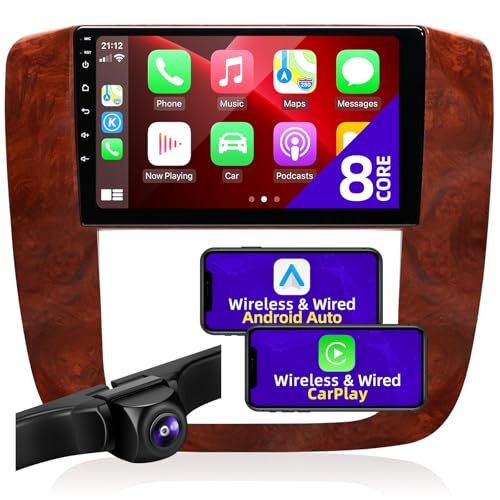
Applicable models:Suitable for Chevrolet Tahoe (2007-2014);Chevrolet Suburban (2007-2014);For Chevrolet Avalanche (2007-2013);For GMC Yukon (2007-2014);For GMC Sierra (2008-2013).Please check the outline of your car's dashboard,if you are not sure you can take a photo of the original dashboard for us to confirm the fit.Easy to install and operate.If you have any questions,Please click"Sold by:CGOGC",click "Ask question ",We will respond to your question as soon as possible,thanks!

【Vehicle Compatibility & OEM Factory Fit】Designed for GMC Yukon/Yukon XL (2007-2014) – SLE/SLT; Chevrolet Tahoe (2007-2014) – LS/LT/LTZ; Chevrolet Suburban (2007-2014) – LS/LT/LTZ; Chevrolet Silverado 1500/2500HD/3500HD (2007-2013) – LTZ; GMC Sierra (2007-2013) – Denali & select SLT trims. Precision-engineered for OEM-style dashboard fit while upgrading your vehicle with a modern QLED display and smart features. Please verify model, year, and trim before purchase.
Default Settings
The default voice volume settings in your Chevrolet Tahoe are preset to ensure clear communication. Standard volume levels typically align with general media volume, often making them more prominent than desired. If you notice these prompts becoming overly distracting, accessing the default settings gives you a foundation for adjustments.
Customization Options
You can customize the voice volume to fit your preferences. Here’s how:
- Access Settings Menu: Start with your infotainment system. Tap on the settings icon from the home screen.
- Select Voice Settings: Navigate to the voice settings or audio settings option.
- Adjust Voice Volume: Use the slider or volume buttons to lower or mute the voice prompts. Test different levels to find one that suits your comfort.
- Save Changes: Ensure you save these changes before exiting the menu.
Familiarize yourself with these settings, so you can quickly adjust them as needed. Reducing the voice prompts consistently enhances your focus on the road.
Step-By-Step Guide To Turn Off Voice Volume
Adjusting the voice volume in your Chevrolet Tahoe enhances your driving experience. Follow these simple steps to mute or lower the volume effectively.
Recommended Products

Android 13 Car Stereo: Compatible with Chevy Silverado (2007-2013), Tahoe (2007-2014) (Third Generation), Equinox (2005-2009) (First Generation), Suburban (2007-2014) (Tenth...
Using The Infotainment System
- Power Up the Infotainment System: Start your Tahoe and ensure the infotainment system is active.
- Access the Settings Menu: Tap the “Settings” icon on the display screen.
- Select Sound Options: In the settings menu, find and select “Sound” or “Audio” settings.
- Adjust Voice Volume: Look for the “Voice Volume” option. You can either slide the volume down or select the mute option to turn it off entirely.
- Save Your Preferences: Confirm your selection by tapping “Save” to apply the changes.
- Locate the Volume Knob: Find the physical volume control knob in your Tahoe’s center console.
- Turn Down the Volume: Rotate the knob counterclockwise to decrease the volume or press the mute button if available.
- Use Steering Wheel Controls: Access the buttons on your steering wheel. Press the lower volume button to reduce the voice prompts during driving.
- Test the Changes: Play a media file or activate the GPS to check if the voice volume meets your preference.
These steps provide a straightforward approach for managing voice volume in your Chevrolet Tahoe, creating a quieter cabin environment for your drives.
Troubleshooting Common Issues
Sometimes, you might encounter issues when trying to turn off or lower the voice volume in your Chevrolet Tahoe. Here are solutions for some common problems.
Recommended Products

Replacement Rear Audio Radio Control Knob Set fit for 2007 - 2013 Chevy Silverado, Gmc Sierra, Yukon Cadillac Escalade

【Vehicle Applicable Models】15.6 inch android large screen Upgrade car radio is compatible for Chevrolet Suburban Tahoe GMC Yukon 2014-2020,Qualcomm Snapdragon 665 Model, 8 Core CPU + 8G RAM +128GB ROM for better control,so the device boasts faster read and write speeds. Moreover, the operation of large-capacity memory further guarantees the system's smooth performance and an excellent user experience.

【For Models】Replacement Remote Control for DVD Chevrolet Tahoe - 2015 2016 2017 2018 2019 2020 2021 DVD Entertainment System
Volume Not Reducing
If the voice volume isn’t reducing despite adjusting the settings, check these factors:
- Infotainment Settings: Ensure you’re adjusting the correct volume slider. Access the main settings and locate the sound options specific to voice prompts.
- Multiple Volume Controls: Keep in mind the Chevy Tahoe might have separate controls for audio and voice prompts. Adjust each one to see if it makes a difference.
- Voice Command Activation: When using voice commands, the system may automatically override volume settings. This could temporarily revert to default levels.
- Bluetooth Connections: If connected via Bluetooth, the volume settings on your phone may be affecting the Tahoe’s voice volume. Check your phone settings as well.
System Reset Recommendations
If issues persist, consider resetting your infotainment system. This often resolves various glitches:
- Power Cycle: Turn off the vehicle, wait a few minutes, and restart. This simple reset can refresh the system.
- Factory Reset: If necessary, navigate to the settings menu, select “System,” and look for “Factory Reset.” Note this will erase any personalization settings.
- Software Updates: Outdated software can cause operational issues. Check for updates in the settings menu and install any available updates to ensure optimal performance.
By following these guidelines, you can effectively troubleshoot any problems with adjusting the voice volume in your Chevrolet Tahoe.
Conclusion
Adjusting the voice volume in your Chevrolet Tahoe can make a world of difference in your driving experience. By taking a few simple steps you can create a more peaceful cabin environment that lets you focus on the road ahead. Whether you choose to lower the volume or mute it entirely you’ll find that your drives become more enjoyable and less distracting.
Don’t forget to explore the settings and customize them to fit your preferences. If you run into any issues remember that troubleshooting is just a part of the process. With a little patience you’ll have your Tahoe’s voice prompts working just the way you like them. Enjoy your quieter rides!
Frequently Asked Questions
How do I mute the GPS voice prompts in my Chevrolet Tahoe?
To mute GPS voice prompts, access the settings menu on your infotainment system. Navigate to the voice settings, then adjust the voice volume to zero or select the mute option. Make sure to save your changes for them to take effect.
Why are the voice prompts in my Tahoe so loud?
The default voice volume settings in your Chevy Tahoe are preset for clear communication, which may be louder than desired. You can adjust this volume through the settings menu to create a more comfortable cabin atmosphere.
Can I adjust the voice volume using steering wheel controls?
Yes, you can adjust the voice volume using the steering wheel controls. Look for the volume knob or buttons that allow you to increase or decrease the sound while using voice commands in your Tahoe.
What should I do if the voice volume won’t decrease?
If the voice volume won’t decrease, check your infotainment settings to ensure you’re adjusting the right control. Also, verify if multiple volume controls are affecting the sound, and consider disconnecting and reconnecting any Bluetooth devices.
How can I reset the voice settings in my Chevrolet Tahoe?
To reset the voice settings, you can power cycle the vehicle or perform a factory reset within the infotainment system. Ensure you check for any software updates that might fix issues with voice prompts.
Is there a way to troubleshoot voice prompt interruptions?
Yes, you can troubleshoot by checking your infotainment settings, ensuring voice command activation is working correctly, and reviewing Bluetooth connections. If problems persist, consider performing a system reset or checking for software updates.

Ben Wilkinson is a an experienced mechanic with over 10 years of experience in the automotive repair industry. He is highly skilled in diagnosing and repairing a wide range of car-related issues, from basic maintenance tasks to more complex repairs.