
Have you ever struggled to connect your smartphone to your Chevrolet MyLink system? You’re not alone. Many drivers find themselves frustrated when trying to access their favorite apps and music while on the road.
Key Takeaways
- User-Friendly Interface: Chevrolet MyLink integrates smoothly with smartphones, providing easy access to apps, music, and navigation directly from the dashboard.
- Seamless Smartphone Integration: Supports both Apple CarPlay and Android Auto, allowing effortless connectivity for various devices.
- Bluetooth and Voice Control: Connect your phone wirelessly and utilize voice commands for a safer, hands-free driving experience.
- Step-by-Step Setup: Ensure a successful connection by following straightforward steps such as activating Bluetooth, selecting MyLink, and pairing devices.
- Regular Updates and Maintenance: Keep your smartphone and MyLink system updated to improve compatibility and performance; manage Bluetooth connections for a smoother experience.
- Troubleshooting Tips: If facing issues, restart devices, remove old connections, update software, and consult the vehicle’s manual for specific guidance.
Overview Of Chevrolet MyLink
Chevrolet MyLink offers a user-friendly interface designed to integrate your smartphone with your vehicle. This system enhances your driving experience by providing access to your favorite apps, music, and navigation tools directly from your car’s dashboard.
Key Features
- Touchscreen Interface: MyLink features a responsive touchscreen that allows for easy navigation through apps and settings.
- Smartphone Integration: Supports Apple CarPlay and Android Auto, enabling seamless access to music and texts.
- Voice Recognition: Utilize voice commands for hands-free operation, enhancing safety while driving.
- Bluetooth Connectivity: Connect your phone wirelessly for calls and media streaming without the clutter of cables.
Compatible Devices
You can connect various smartphones using either Apple CarPlay or Android Auto. To ensure compatibility, check the following:
- iOS Devices: iPhone 5 or newer, running iOS 7.1 or later.
- Android Devices: Android 5.0 (Lollipop) or newer.
Setup Process
Connecting your smartphone to Chevrolet MyLink involves these steps:
- Check Your Vehicle: Ensure your vehicle is equipped with the MyLink system.
- Activate Bluetooth: Turn on Bluetooth on your smartphone.
- Select MyLink on Display: Access the Bluetooth settings on the MyLink display.
- Pair Devices: Follow on-screen prompts to complete the pairing process.
Troubleshooting Tips
If you experience connection issues:
- Restart Devices: Restart your smartphone and vehicle.
- Delete Old Connections: Remove previously paired devices from the MyLink system.
- Update Software: Ensure both your smartphone and MyLink system are updated to the latest software versions.
Connecting Chevrolet MyLink can transform your driving experience, making it safer and more enjoyable. Follow the steps and tips for a successful setup.
Steps To Connect Chevrolet MyLink
Connecting your smartphone to Chevrolet MyLink enhances your driving experience. Follow these steps to ensure a smooth setup.
Recommended Products

【Enjoy Wireless Streaming Music】This car Bluetooth adapter can be connected to non-Bluetooth car audio systems, home stereos, speakers, wired headphones via the 3.5mm AUX adapter; And equipped with a Bluetooth 5.3 chip for stable connection / fast transmission / wide signal range. Just pair it with your phone and start listening to your favorite music!

High-Fidelity Stereo Audio: Featuring Bluetooth 6.0 chipset, this 3.5mm Bluetooth adapter provides stable connection up to 100FT (30m) without delay. Made for car use, this car Aux Bluetooth adapter supports SBC codec, delivering clear, functional, and enjoyable sound—both for listening and for speaking.

[Humanized Ambient Light Switch Design] - Indulge in a delightful driving experience with our trendy rainbow light design. Immerse yourself in fun while having the convenience of easily turning off the light by double pressing the red "B" button when not needed. Enjoy the captivating ambiance of the rainbow lights and have full control over your driving atmosphere.
Preparing Your Device
- Update Software: Check that your smartphone’s operating system is up to date. Most recent versions of iOS or Android work best with MyLink.
- Enable Bluetooth: Turn on Bluetooth in your device settings. If Bluetooth isn’t activated, your phone won’t connect.
- Install Compatible Apps: Download apps like Apple CarPlay or Android Auto if applicable. These apps enhance compatibility with MyLink.
Connecting Via Bluetooth
- Start Your Vehicle: Turn on your Chevrolet and ensure you’re in park.
- Access the MyLink Menu: Tap the “Phone” icon on the MyLink touchscreen.
- Select “Pair Device”: Follow the prompts to enter the pairing mode.
- Find MyLink on Your Phone: Open Bluetooth settings on your smartphone and locate “Chevrolet MyLink” in the available devices list.
- Pair Together: Select “Chevrolet MyLink” and confirm the pairing code displayed on both devices. This step ensures a secure connection.
- Complete Setup: Once connected, you can access your phone’s contacts and music directly from the MyLink interface.
- Retry Connection: If the connection fails, turn Bluetooth off and on again on both devices and repeat the pairing process.
- Forget Device: On your smartphone, go to Bluetooth settings, find “Chevrolet MyLink,” and select “Forget.” Retry pairing after doing this.
- Check for Interference: Move away from other Bluetooth devices that may interfere with the connection, as they can cause disruption.
- Consult the Manual: Review the owner’s manual your vehicle came with. It contains specific instructions related to your MyLink version.
- Contact Support: If issues persist, reach out to your local Chevrolet dealership or Chevy customer support for further assistance.
Following these steps ensures a successful connection between your smartphone and Chevrolet MyLink, allowing you to enjoy a seamless driving experience.
Features Of Chevrolet MyLink
Chevrolet MyLink offers a range of features that enhance connectivity and convenience while driving. These features streamline your driving experience, ensuring safe access to essential applications and information.
Recommended Products

Upgrade to Wireless CarPlay & Android Auto The 2 in 1 Wireless CarPlay and Android Auto Adapter converts your factory wired system into a wireless experience. It’s perfect for families using both iPhone and Android phones, allowing effortless switching without unplugging or swapping cables. This adapter is compatible with over 1,000 vehicle models—supporting 800+ with wired CarPlay and 500+ with wired Android Auto. Works with iPhone 6 or later and Android 11 or above devices.

The Ultimate Smarter Copilot: Stay on Top of Your Driving- The 3A magic link CarPlay box control everything with a word, Or a touch, Or a twist. Save your 40% of time by quick auto conn and seamless operation, such as navigation, music playing, Siri assistant, phone calls, radio etc(Our Carplay Only Compatible with wired Apple CarPlay Car systems)

Keep Your Phone in Your Pocket: Turn factory wired CarPlay or Android Auto into a wireless setup and keep using your car’s original screen. This 2-in-1 wireless adapter is ideal for households with both iPhone and Android phones sharing a vehicle. Connects to one phone at a time; disconnect the current phone before connecting another.
Media Options
Chevrolet MyLink supports various media options, allowing you to enjoy your favorite music seamlessly. You can connect your smartphone via Bluetooth or USB to stream audio from apps like Spotify, Pandora, or Apple Music. The responsive touchscreen enables easy navigation through playlists, albums, and stations. Additionally, you can access FM/AM radio, SiriusXM, or play CDs, providing multiple choices for entertainment on the road.
Navigation Integration
Navigation integration is another key feature of Chevrolet MyLink. You can use either Apple CarPlay or Android Auto to access navigation apps like Google Maps or Waze directly on the MyLink display. The system provides turn-by-turn directions, real-time traffic updates, and estimated arrival times. Voice commands allow for hands-free control, helping you stay focused on the road while arriving at your destination efficiently.
Tips For Enhanced User Experience
- Keep Software Updated
Regularly check for software updates for both your smartphone and Chevrolet MyLink. Updates often fix bugs and improve compatibility. - Use High-Quality Cables
If you connect via USB, use original or high-quality cables. Poor cables can lead to connection issues or slow charging. - Manage Bluetooth Connections
Remove any old or unused Bluetooth connections from your device. This reduces interference and helps establish a smoother connection. - Customize Your Settings
Take time to personalize the MyLink settings. Adjust preferences for music, navigation, and display settings based on your habits. - Enable Do Not Disturb Mode
Activate Do Not Disturb on your phone while driving. This feature limits distractions by silencing notifications without losing connectivity to MyLink. - Familiarize Yourself with Voice Commands
Practice using voice commands for hands-free control. Familiarity can increase safety and speed while accessing features. - Explore App Integration
Discover compatible apps for streaming and navigation. Using specific apps designed for MyLink enhances usability and convenience. - Create User Profiles
If your vehicle supports multiple drivers, set up user profiles. This feature allows each driver to save their preferences and keep their settings separate. - Regularly Clean the Touchscreen
Wipe down the touchscreen with a microfiber cloth. A clean screen improves visibility and responsiveness. - Consult the Manual
Keep the MyLink user manual handy. It contains valuable information about features, settings, and troubleshooting. - Reach Out for Support
If you encounter persistent issues, don’t hesitate to contact Chevrolet customer support. They can provide expert assistance tailored to your situation.
Recommended Products
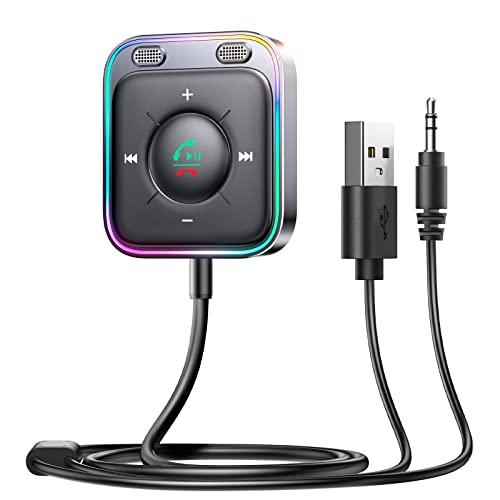
HiFi Stereo Audio: JOYROOM Bluetooth 6.0 AUX car adapter with the stable Bluetooth technology, solving the transmission delay and connection issues of older versions. Enjoy faster, more stable audio with minimal sound loss, plus a working distance of up to 100FT—ideal as car accessories for daily use

Upgraded Bluetooth 5.3 Technology: Bluetooth FM transmitter Car Adapter adopts upgraded Bluetooth 5.3 chip for faster, more stable and smarter connection with compatible devices, which optimizes the transmission delay and connectivity flaws of the old version of Bluetooth, and brings you unprecedented high-fidelity music.

Bluetooth 5.4 Version: The latest Bluetooth 5.4 technology allows for 33 feet long range transmission and stable connection, giving you a pleasant music environment while driving with an aux Bluetooth adapter.
Conclusion
Getting your smartphone connected to Chevrolet MyLink doesn’t have to be a hassle. By following the steps outlined in this guide you can easily enjoy all the features MyLink has to offer. Whether it’s streaming your favorite music or navigating with ease you’re set for a more enjoyable drive.
Remember to keep your software updated and troubleshoot any issues that pop up. With a little patience and practice you’ll find that MyLink enhances your driving experience in ways you didn’t expect. So go ahead and explore all the possibilities that come with connecting your device to Chevrolet MyLink. Happy driving!
Frequently Asked Questions
What is Chevrolet MyLink?
Chevrolet MyLink is an advanced in-car infotainment system that allows drivers to integrate their smartphones with their vehicles. It provides access to apps, music, and navigation directly from a responsive touchscreen interface, enhancing the overall driving experience.
How do I connect my smartphone to Chevrolet MyLink?
To connect your smartphone, ensure Bluetooth is enabled on your device and the MyLink system is set to discoverable. Start your vehicle, access the MyLink menu, select Bluetooth settings, and follow the prompts to pair your smartphone.
What smartphones are compatible with Chevrolet MyLink?
Chevrolet MyLink is compatible with most smartphones that support Apple CarPlay or Android Auto. For best results, ensure your device’s software is updated and that you have the necessary apps installed.
What should I do if I can’t connect my phone to Chevrolet MyLink?
If you encounter connection issues, first, ensure Bluetooth is turned on and your MyLink system is discoverable. Try forgetting the device and reconnecting, checking for software updates, and ensuring no other devices are interfering with the connection.
Can I use apps like Spotify with Chevrolet MyLink?
Yes, you can stream music from apps like Spotify, Pandora, and Apple Music using Chevrolet MyLink. Simply connect your smartphone via Bluetooth or USB, and navigate through the app on the MyLink interface.
How can I enhance my experience with Chevrolet MyLink?
To improve your MyLink experience, keep both your smartphone and the MyLink system updated, use quality USB cables, clean the touchscreen regularly, and manage Bluetooth connections by removing old devices.
Is it safe to use Chevrolet MyLink features while driving?
Chevrolet MyLink is designed to promote safer driving. Use voice commands and enable Do Not Disturb mode to minimize distractions while accessing features like navigation and music.
What should I do if I still face issues with Chevrolet MyLink?
If problems persist, consult the user manual for guidance, contact Chevrolet customer support for assistance, and consider resetting the MyLink system. Regular maintenance and updates can also help prevent issues.

Ben Wilkinson is a an experienced mechanic with over 10 years of experience in the automotive repair industry. He is highly skilled in diagnosing and repairing a wide range of car-related issues, from basic maintenance tasks to more complex repairs.